

Description
RECORDED TRAINING COURSE
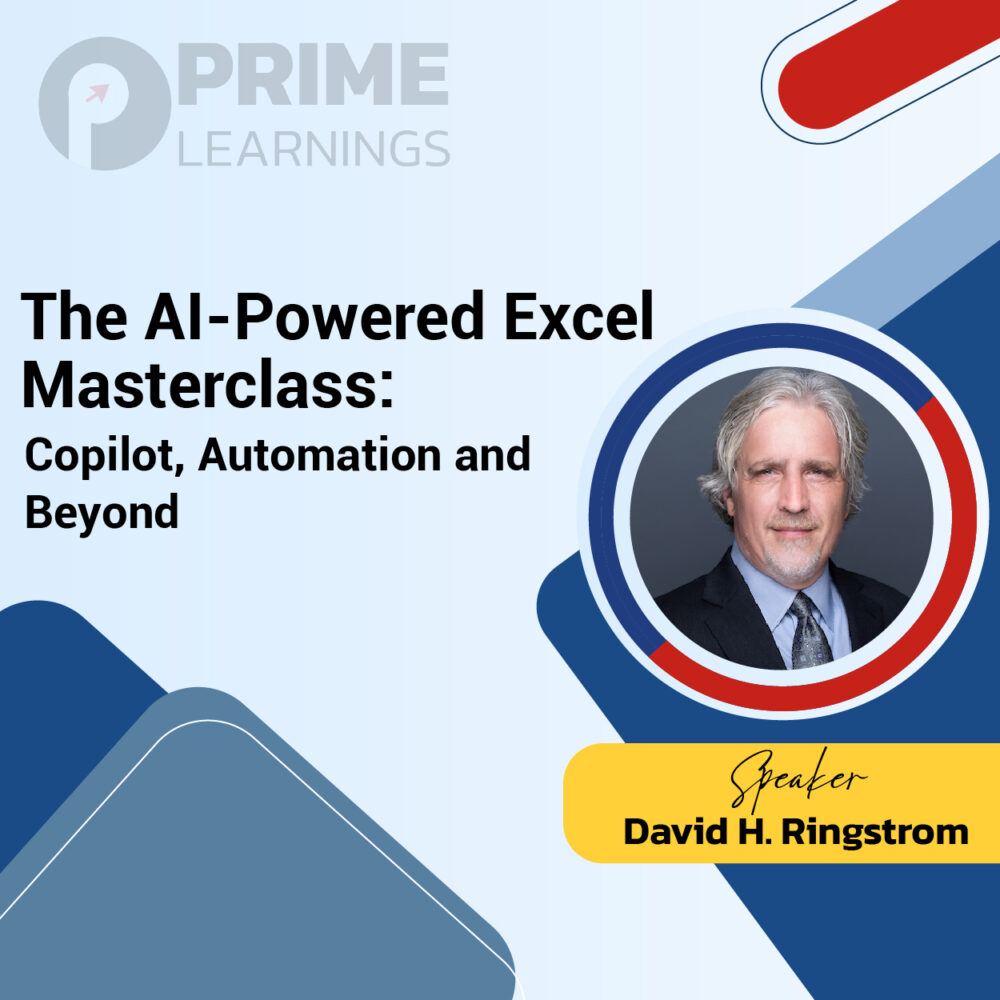
Artificial intelligence in Excel extends far beyond Copilot, with powerful features already available to help clean data, uncover insights, automate tasks, and build smarter spreadsheets. In this forward-looking session, David Ringstrom, CPA and author of Excel for Dummies, explores both Excel’s established intelligent features and the rapidly evolving AI capabilities arriving through Microsoft 365 and Copilot. You’ll learn how to use tools such as Flash Fill, Recommended PivotTables, Analyze Data, and data extraction from pictures and web sources, while also seeing how ChatGPT and Copilot can help create formulas, categorize transactions, and build reusable spreadsheet intelligence. The session concludes with an exploration of Microsoft’s AI roadmap, including agents, Copilot-powered functions, and emerging capabilities that are reshaping how Excel users work with data.
David has more than 30 years of experience as a spreadsheet and accounting software consultant and speaker. He has presented over 2,500 live webinars and is the author or co-author of ten books, including “Microsoft 365 Excel All-in-One for Dummies”, “Microsoft 365 Excel for Dummies”, “Exploring Microsoft Excel’s Hidden Treasures”, and “QuickBooks Online for Dummies”.
In his webinars, David demonstrates every technique twice: first on a PowerPoint slide with numbered steps, and then live in Excel for Microsoft 365 for Windows. He highlights any differences in Excel 2024, 2021, or 2019 during the presentation and in his detailed handouts. Attendees also receive an Excel workbook containing most of the examples he uses, making it easy to follow along and apply the techniques later. David additionally supports Excel for Mac users by answering their follow-up questions via email.
Session Highlights:
- Exploring worksheets, ranges, and objects with quick search and links.
- Defining the core capabilities of AI agents.
- Copying named LAMBDA functions into new workbooks and verifying them in Name Manager.
- Utilizing the COPILOT worksheet function for enhanced data analysis and automation.
- Turning a COPILOT formula into a reusable custom function by defining it as a LAMBDA in Excel.
- Integrating data on web pages into your workbooks and creating automatic links.
- Using the Recommended Charts feature to create suitable charts from data with a couple of mouse clicks.
- Automating AI requests by using LAMBDA and COPILOT together.
Why You Should Attend:
- State the functionality that the Flash Fill feature offers.
- Define the purpose of the Forecast feature.
- Recognize the color that dynamic array functions are displayed in within Excel’s formula bar in all cells except the cell where the formulas were entered.
Who Should Attend:
Designed for Excel users who want to understand how AI can improve productivity, automate routine tasks, and enhance data analysis in 2026. This webinar is also beneficial for professionals in the following professions:
- Accountants
- CPAs
- CFOs
- Controllers
- Income Tax Preparers
- Enrolled Agents
- Financial Consultants
- IT Professionals
- Auditors
- Human Resource Personnel
- Bookkeepers
- Excel Users
- Marketers
- Government Personnel
Note: You will get access to the Recording link and E-Transcript; in your account and at your registered email address.
 Acclaimed Microsoft Excel expert David H. Ringstrom, CPA, is the president and owner of Accounting Advisors, Inc. based in Atlanta, Georgia. David founded Accounting Advisors in 1991 as a consulting services business, but in 2009, he began teaching for continuing education providers as well. David’s Excel courses cover the software’s features and functions to provide CPAs accounting and financial professionals the knowledge they need to work more efficiently and effectively in Excel. David is known for saying, “Either you work Excel, or it works you. And, that’s how he approached the subject.